eSIM Shows 'No Service' — How to Fix
What's Going On?
"No Service" is the single most common issue people run into with travel eSIMs — and the good news is that it's almost always a settings problem, not a faulty eSIM. Your phone needs a few things to be configured correctly before it can connect to a foreign network.
Let's walk through the fixes in order, starting with the most common causes.
Step 1: Make Sure the eSIM Line Is Turned On
This sounds obvious, but it catches a lot of people. Installing an eSIM doesn't always mean it's active.
On iPhone: Go to Settings > Cellular and find your eSIM plan in the list. Make sure the toggle next to Turn On This Line is enabled. Then tap Cellular Data and select your eSIM as the default data line.
On Android: Go to Settings > Network & Internet > SIMs, tap your eSIM, and make sure it's enabled. Set it as the default for mobile data.
Step 2: Enable Data Roaming
This is the number one fix. Travel eSIMs work by roaming on local partner networks, and your phone blocks roaming by default.
On iPhone: Go to Settings > Cellular, tap your eSIM plan, and toggle Data Roaming to ON.
On Android: Go to Settings > Network & Internet > SIMs, tap your eSIM, and enable Roaming.
Without Data Roaming enabled, your eSIM cannot connect. This single setting resolves the majority of "No Service" reports we receive.
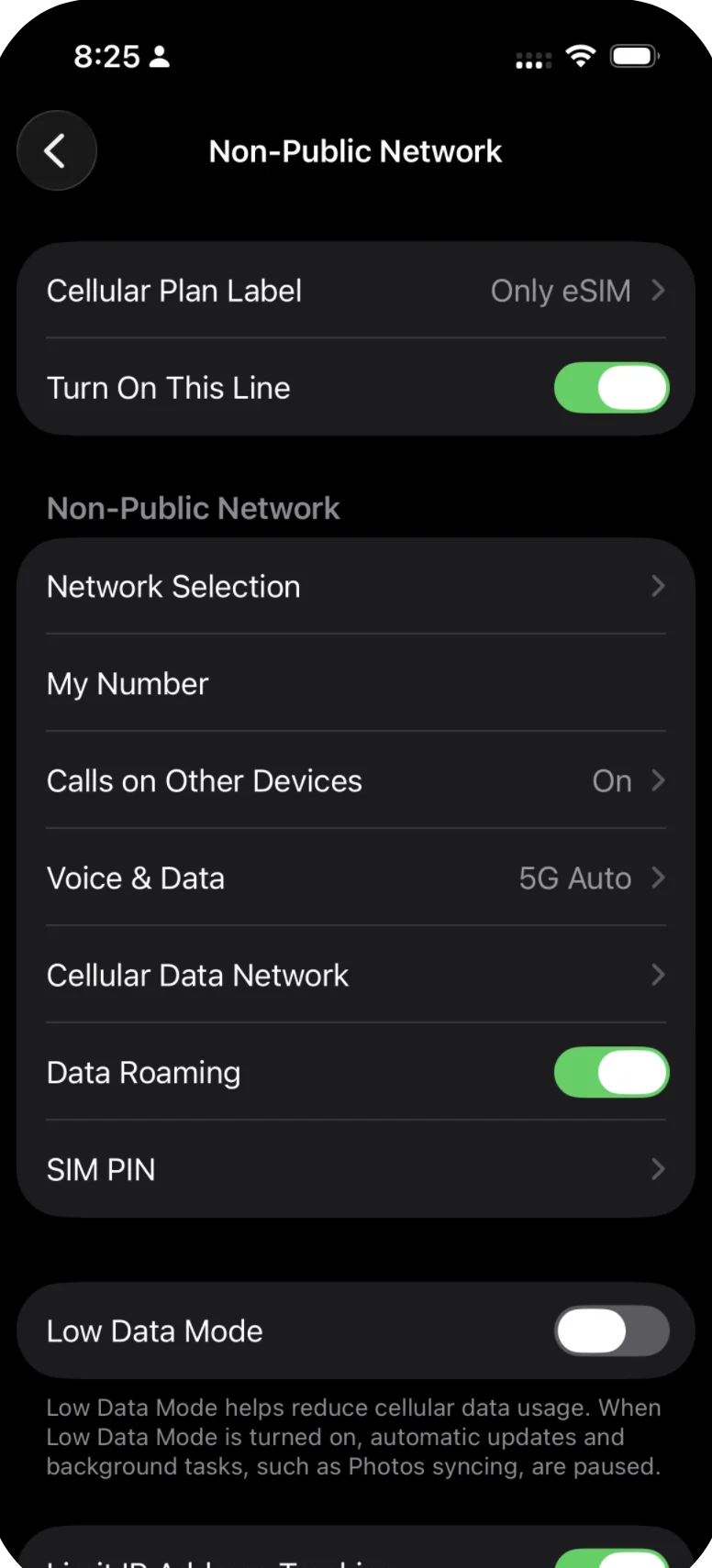
Make sure Data Roaming is ON and the line is enabled.
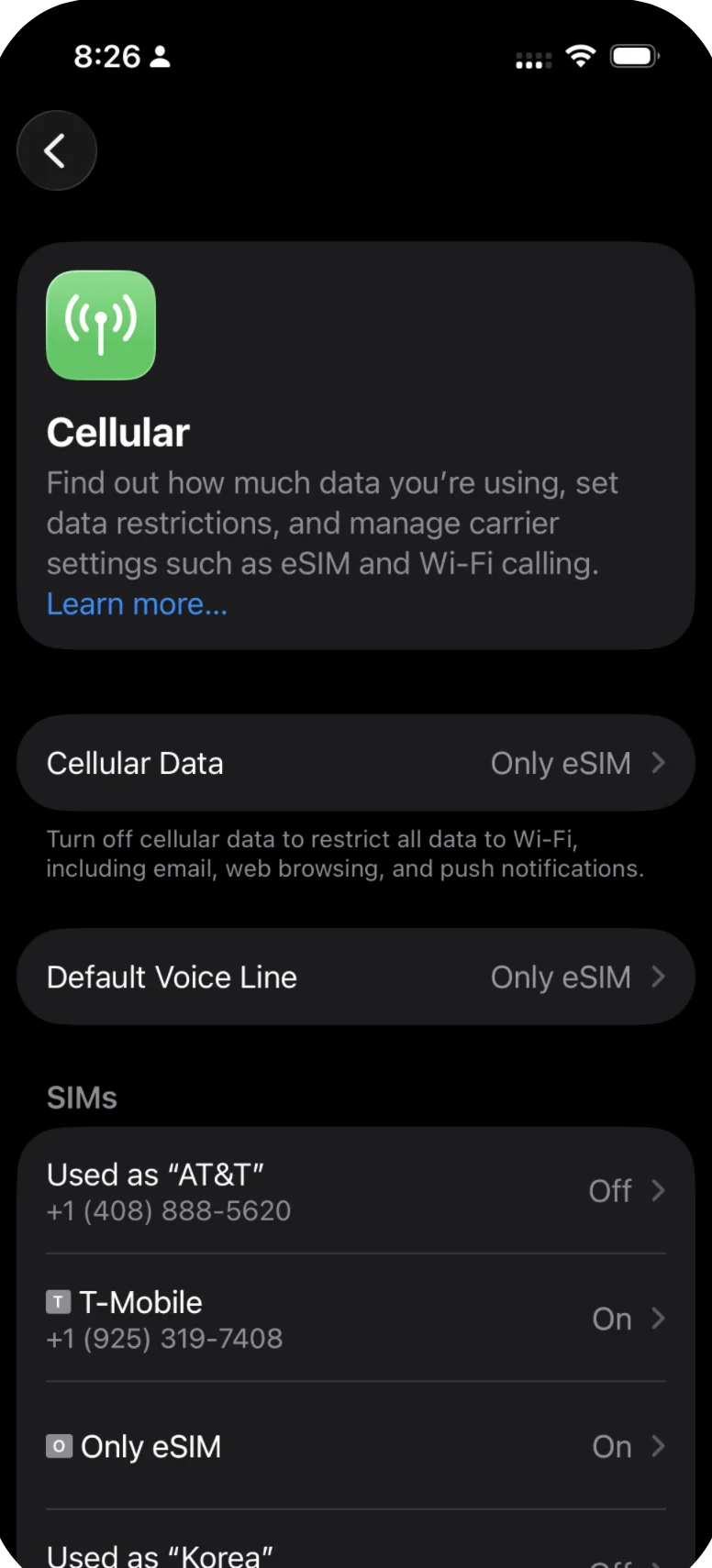
Verify your eSIM shows as "On" in the SIMs list.
Step 3: Toggle Airplane Mode
Sometimes your phone just needs a nudge to search for available networks.
- Swipe into your Control Center (or pull down the notification shade on Android)
- Turn Airplane Mode ON
- Wait 30 seconds
- Turn Airplane Mode OFF
Your phone will re-scan for networks. Give it a minute to connect.
Step 4: Restart Your Phone
A full restart clears out stuck network processes that toggling Airplane Mode might not fix.
- Power off your phone completely
- Wait 10 seconds
- Power it back on
- Wait a minute or two for it to connect to a network
Step 5: Manually Select a Network
If your phone can't automatically find a compatible carrier, you can pick one yourself.
On iPhone: Go to Settings > Cellular, tap your eSIM plan, then tap Network Selection. Toggle off Automatic and wait for a list of available carriers to appear. Try connecting to each one until you get a signal.
On Android: Go to Settings > Network & Internet > SIMs, tap your eSIM, then tap Network operators. Turn off automatic selection and choose a carrier from the list.
Tip: If no carriers appear in the list, make sure Data Roaming is turned on first, then try again.
Step 6: Check That Your Plan Is Active
Your eSIM plan might have expired or not yet started.
- Log in to your account at onlyesim.com and check your plan status
- Verify the plan covers the country you're currently in
- Check the validity dates — plans have both a data cap and an expiration window
If your plan has expired or you've used all the data, you'll need to purchase a new plan or top up.
Still Not Working?
If you've worked through every step and your eSIM still shows "No Service," contact our support team. Include your order number and the country you're in — we'll check your plan status on the backend and get you sorted out quickly.
Related Articles
Google Pixel eSIM Troubleshooting: Step-by-Step Fixes
Fix eSIM connection issues on Google Pixel phones. Step-by-step troubleshooting for No Service, data roaming, Google Fi conflicts, and Pixel-specific network problems.
Android eSIM Troubleshooting: Complete Fix Guide
Fix eSIM connection problems on Android phones. Step-by-step guide for No Service, data not working, network issues, and dual SIM conflicts on stock Android devices.
Samsung Galaxy eSIM Troubleshooting: Fix Common Issues
Fix eSIM connection problems on Samsung Galaxy phones. Step-by-step guide covering SIM manager, data roaming, network selection, and Samsung-specific issues.
Was this article helpful?