
eSIM Troubleshooting: Common Problems and How to Fix Them
 Owen4 min read
On this page
The number one eSIM support request across nearly every provider is the same: "I activated my eSIM and it says No Service." The fix, about 80% of the time, is a single toggle buried in your phone's settings. That pattern repeats for most eSIM problems: they look like hardware failures but turn out to be software settings. Here is how to diagnose and fix the four most common ones.
"No Service" After Activation
This is the single most reported eSIM issue, and it is almost always a settings problem rather than a defective eSIM.
Check these first:
-
Data Roaming is off. This catches more people than anything else. Travel eSIMs need Data Roaming enabled to connect to partner networks abroad. On iPhone: Settings > Cellular > your eSIM line > Data Roaming > toggle ON. On Android: Settings > Network & Internet > SIMs > your eSIM > Roaming > toggle ON.
-
Wrong line selected for data. If your phone has both a physical SIM and an eSIM, it might still be routing data through your home SIM. On iPhone, go to Settings > Cellular > Cellular Data and select your travel eSIM. On Android, check Settings > Network & Internet > SIMs and set your eSIM as the data line.
-
Airplane mode toggle. Turn Airplane Mode on, wait 10 seconds, turn it off. This forces your phone to re-scan for networks and often resolves connection issues that a regular restart does not.
-
Network selection stuck on wrong carrier. Your phone may have latched onto a network your eSIM doesn't support. Go to Settings > Cellular > Network Selection (iPhone) or Settings > Network & Internet > SIMs > your eSIM > Network operators (Android). Switch from Automatic to Manual, pick a supported carrier from the list, then switch back to Automatic.
If none of that works, restart your phone fully. A cold reboot clears network registration caches that toggling Airplane Mode sometimes misses.
Most eSIM fixes start in settings: roaming, data line, airplane mode, and network selection.
eSIM Profile Won't Download
You scan the QR code and your phone shows "Unable to Activate eSIM," "This Code is No Longer Valid," or just spins forever. A few likely causes:
No internet connection. Your phone needs an active internet connection (WiFi or cellular) to download the eSIM profile. The QR code itself does not contain the profile; it contains a pointer to an SM-DP+ server that holds the actual carrier profile. No internet, no download. Connect to WiFi first, then scan.
VPN is running. VPNs can interfere with the server communication required during eSIM provisioning. Turn off any VPN or proxy before scanning.
QR code already used. Most eSIM QR codes are single-use. If you started the installation and cancelled partway through, the code may already be consumed. Check your cellular settings to see if the profile partially installed. If not, contact your provider for a replacement code.
Code has expired. Some providers set expiration windows on QR codes. If you purchased an eSIM weeks before your trip and never installed it, the code may have expired.
Fallback option: If the QR code refuses to work, ask your provider for the SM-DP+ address and activation code. You can enter these manually under Settings > Cellular > Add eSIM > Enter Details Manually on iPhone. On Android, the path varies by manufacturer: on Pixel, it is Settings > Network & Internet > SIMs > Add SIM, then tap "Need help?" and "Enter it manually." On Samsung, check Settings > Connections > SIM manager > Add eSIM. Same result, different method.
Data Not Working Abroad
Your eSIM shows signal bars and says "Connected" but nothing loads. Webpages time out. WhatsApp messages sit on a single gray checkmark.
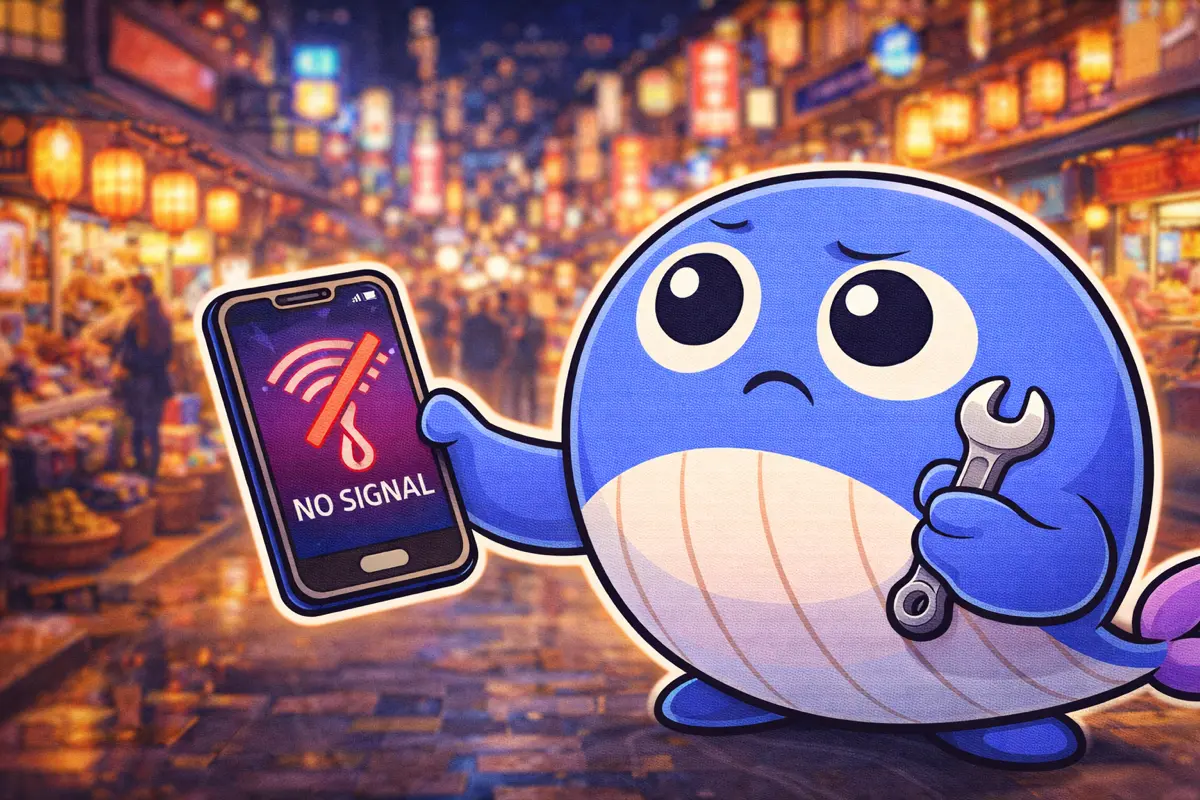
Signal bars without working data is usually an APN or roaming settings issue.
The usual suspects:
Data Roaming is off (again). Yes, this appears twice because it accounts for a staggering number of support tickets. Double-check it.
Your plan does not cover this country. Regional eSIM plans cover specific countries. If your plan covers Southeast Asia and you have crossed into a country outside that region, it will not work. Check your plan's coverage list in the provider's app or confirmation email.
Your data is used up. Some plans throttle to zero rather than slowing down. Check your remaining data balance in your provider's app. If it is exhausted, you will need to top up or buy a new plan.
Time zone or date mismatch. This is an obscure one. Some networks reject authentication when your phone's date and time are wrong. Go to Settings > General > Date & Time (iPhone) or Settings > System > Date & Time (Android) and make sure "Set Automatically" is enabled.
Manual network selection needed. In some countries, automatic network selection picks a carrier that does not have a roaming agreement with your eSIM provider. Try manually selecting a different carrier from the network list, then see if data starts working.
APN Configuration Errors
APN stands for Access Point Name. Think of it as the gateway address your phone uses to reach the mobile data network. Most eSIMs configure the APN automatically during installation. When that automatic setup fails, you get signal bars but no internet.
How to check and fix APN settings:
On iPhone: Settings > Cellular > your eSIM line > Cellular Data Network. The APN field should have a value. If it is blank or says "internet" when it should say something else, enter the correct APN from your provider's documentation. Note: some carriers hide this menu entirely. If you do not see "Cellular Data Network," the APN is locked by the carrier profile and cannot be changed manually.
On Android: Settings > Network & Internet > SIMs > your eSIM > Access Point Names. Look for the correct APN entry. If none exists, tap the "+" icon to create one. Enter only the APN field (and username/password if your provider specifies them). Save and select it.
Where to find your correct APN: Check your eSIM provider's confirmation email, their app, or their support/FAQ page. At Only eSIM, APN details are included in your order confirmation and in our setup guides. Do not rely on generic APN lists from forums; incorrect values will keep data broken.
Nuclear option: If nothing else works, reset your network settings entirely. On iPhone: Settings > General > Transfer or Reset iPhone > Reset > Reset Network Settings. On Android: Settings > System > Reset Options > Reset WiFi, Mobile & Bluetooth. This wipes saved WiFi passwords and Bluetooth pairings, so treat it as a last resort. The good news: a network settings reset does NOT delete your eSIM profiles. Your eSIM stays installed, but all APN customizations revert to defaults, which often fixes the problem.
When to Contact Support
If you have gone through everything above and your eSIM still is not working, the problem is likely on the provider side. Before you contact support, gather three things: a screenshot of the error message, your device model and OS version, and the country you are in. This saves time and avoids the back-and-forth.
Good eSIM providers (including us) can usually resolve remaining issues within a few minutes. Common provider-side fixes include reissuing a profile, switching you to a different partner network, or correcting a provisioning error on their end.
For a broader overview of how eSIM technology works under the hood, our beginner's guide to eSIM covers the fundamentals. And if you are setting up an eSIM for a specific trip, our destination guides walk through country-specific network details and coverage tips.
Photo by Jonathan Kemper on Unsplash.
Find data for your next trip
Compare coverage, data and validity before choosing your eSIM.
Browse destinationsMore for your trip
Learn
How to Install and Activate an eSIM
Step-by-step eSIM installation guide for iPhone and Android. Covers QR code scanning, manual activation code entry, and fixes for the most common setup failures.
Owen7 min read
Learn
How to Check if Your Phone Supports eSIM
Step-by-step instructions for checking eSIM compatibility on iPhone, Samsung, Google Pixel, and other Android devices. Plus how to tell if your phone is carrier-locked.
Owen5 min read
Learn
Can You Use an eSIM for Calls and Texts, or Just Data?
Most travel eSIMs are data-only, but that doesn't mean you can't make calls. Here's how data-only vs voice eSIMs work, plus the apps that let you call and text over any data connection.
Owen4 min read